1
2
3
4
5
6
7
8
9
10
11
12
13
14
15
16
17
18
19
20
21
22
23
24
25
26
27
28
29
30
31
32
33
34
35
36
37
38
39
40
41
42
43
44
45
46
47
48
49
50
51
52
53
54
55
56
57
58
59
60
61
62
63
64
65
66
67
68
69
70
71
72
73
74
75
76
77
78
79
80
81
82
83
84
85
86
87
88
89
90
91
92
93
94
95
96
97
98
99
100
101
102
103
104
105
106
107
108
109
110
111
112
113
114
115
116
117
118
119
120
121
122
123
124
125
126
127
128
129
130
131
132
133
134
135
136
137
138
139
140
141
142
143
144
145
146
147
148
149
150
151
152
153
154
155
156
157
158
159
160
161
162
163
164
165
166
167
168
169
170
171
172
173
174
175
176
177
178
179
180
181
182
183
184
185
186
187
188
189
190
191
192
193
194
195
196
197
198
199
200
201
202
203
204
205
206
207
208
209
210
211
212
213
214
215
216
217
218
219
220
221
222
223
224
225
226
227
228
229
230
231
232
233
234
235
236
237
238
239
240
241
242
243
244
245
246
247
248
249
250
251
252
253
254
255
256
257
258
259
260
261
262
263
264
265
266
267
268
269
270
271
272
273
274
275
276
277
278
279
280
281
282
283
284
285
286
287
288
289
290
291
292
293
294
295
296
297
298
299
300
301
302
303
304
305
306
307
308
309
310
311
312
313
314
315
316
317
318
319
320
321
322
323
324
325
326
327
328
329
330
331
332
333
334
335
336
337
338
339
340
341
342
343
344
345
346
347
348
349
350
351
352
353
354
355
356
357
358
359
360
361
362
363
364
365
366
367
368
369
370
371
372
373
374
375
376
377
378
379
380
381
382
383
384
|
<div align="center">
# Bibiman<a name="bibiman"></a>
<!-- [](https://nogithub.codeberg.page/) -->
[](https://matrix.to/#/#bibiman-tui:matrix.org)
</div>
<!-- mdformat-toc start --slug=github --maxlevel=6 --minlevel=1 -->
- [Bibiman](#bibiman)
- [TL;DR](#tldr)
- [Installation](#installation)
- [Crates.io](#cratesio)
- [Cargo (Build from source)](#cargo-build-from-source)
- [AUR](#aur)
- [Void Linux](#void-linux)
- [Usage](#usage)
- [Configuration](#configuration)
- [Location of Config File](#location-of-config-file)
- [General Configuration](#general-configuration)
- [Color Configuration](#color-configuration)
- [Features](#features)
- [Keybindings](#keybindings)
- [Search](#search)
- [Edit bib entry](#edit-bib-entry)
- [Open connected files or links](#open-connected-files-or-links)
- [Issues and code improvement](#issues-and-code-improvement)
- [Alternatives](#alternatives)
- [Comparison](#comparison)
<!-- mdformat-toc end -->
## TL;DR<a name="tldr"></a>
`bibiman` is a simple terminal user interface for handling your BibLaTeX
database as part of a terminal-based scientific workflow.
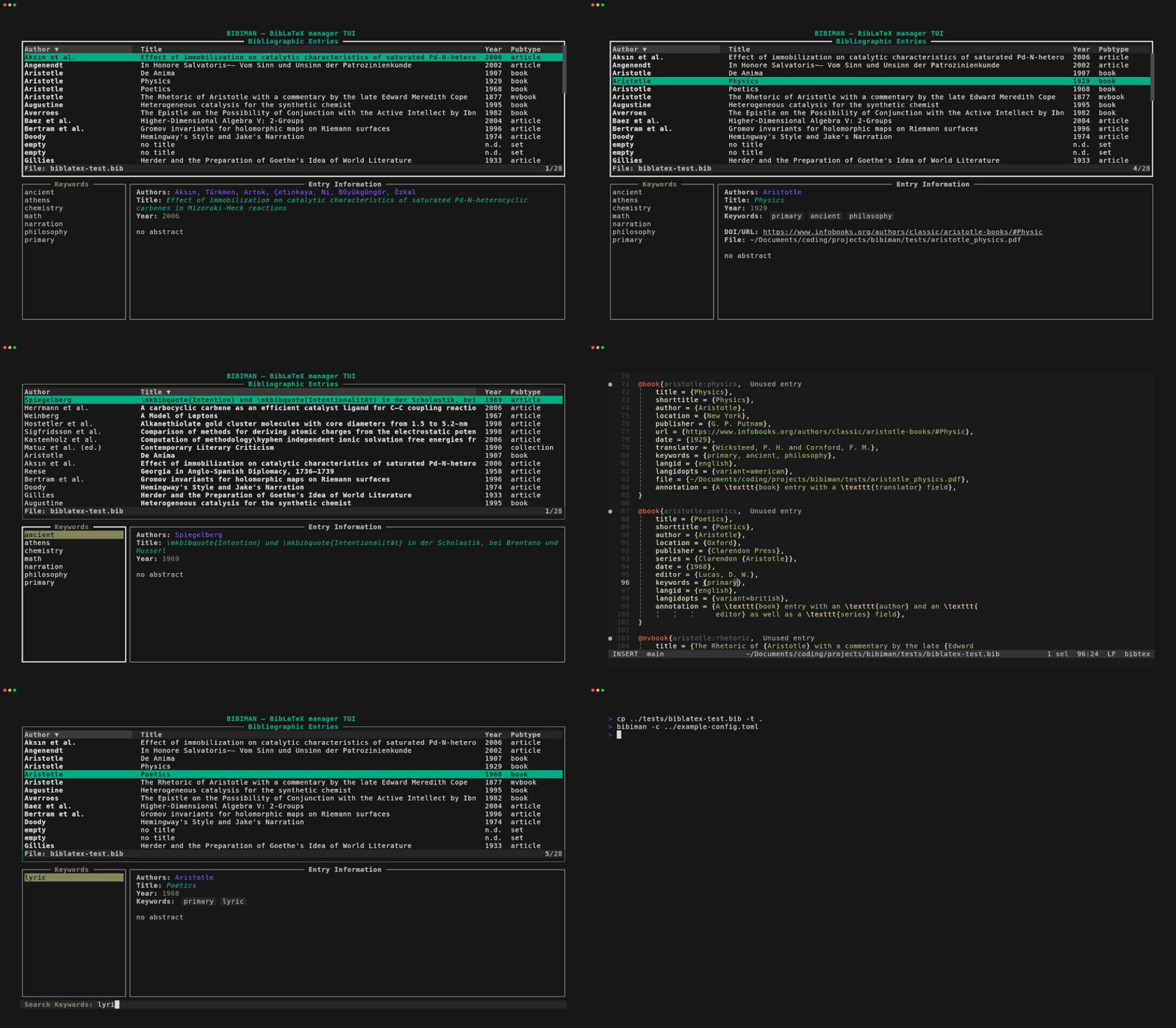
Here's a small impression how it looks and works:
[](https://postimg.cc/ct0W0mK4)
## Installation<a name="installation"></a>
### Crates.io<a name="cratesio"></a>
You can install `bibiman` directly from `crates.io` using `cargo`:
```bash
cargo install bibiman
```
### Cargo (Build from source)<a name="cargo-build-from-source"></a>
To use the version including the newest commits, you can clone the repo and
build it from source using `cargo`:
```bash
git clone https://codeberg.org/lukeflo/bibiman
cd bibiman
# Build the binary to /target/release
cargo build --release
# OR
# Install the binary to CARGO_HOME/bin which normally is in PATH
cargo install --path=. --locked
```
### AUR<a name="aur"></a>
Thanks to user @matcha its possible to install `bibiman` on Arch-based systems
via the AUR:
```bash
yay -S bibiman # or any other AUR helper
```
### Void Linux<a name="void-linux"></a>
I maintain a [PR](https://github.com/void-linux/void-packages/pull/53803) in the
official Void package repos and hope it gets merged soon. Until that happens,
you can easily pull that PR into your local clone of Void packages and build it
with `xbps-src`.
## Usage<a name="usage"></a>
The following arguments are possible:
```
USAGE:
bibiman [FLAGS] [files/dirs]
POSITIONAL ARGS:
<file> Path to .bib file
<dir> Path to directory containing .bib files
FLAGS:
-h, --help Show this help and exit
-v, --version Show the version and exit
-c, --config-file= Path to config file for current session needed as argument.
Takes precedence over standard config file
--light-terminal Enable color mode for light terminal background
```
As seen, you can pass a single file, multiple files, the path of a directory
containing bibfiles, or mix files and directories.
Directories will be searched recursively for files with the `.bib` extension and
add them to the entry list. Other files will be ignored.Thus, be careful not to
pass a directory with multiple subdirectories (like eg `/home/usr/`), because
this could lead to some delay while parsing GBs of data.
The following lines are all valid CLI calls to run `bibiman` using the test
files from the `tests` folder:
```bash
# single file
bibiman tests/biblatex-test.bib
# multiple files
bibiman tests/multi-files/bibfile1.bib tests/multi-files/bibfile2.bib
# directory containing bibfiles
bibman tests/multi-files/
# mixed arguments
bibiman tests/biblatex-test.bib tests/multi-files/
```
## Configuration<a name="configuration"></a>
### Location of Config File<a name="location-of-config-file"></a>
`bibiman` can be configured through a config file. The standard location is the
user's config dir following the XDG scheme. On Linux systems this defaults to:
```bash
# XDG scheme:
$XDG_CONFIG_HOME/bibiman/bibiman.toml
# Fallback:
$HOME/.config/bibiman/bibiman.toml
```
You can set a custom config file through the CLI (`-c`/`--config-file=` flag)
which takes precedence over the standard one for the active session:
```bash
bibiman --config-file="/path/to/temporary/config"
```
If neither a file exists at the default location, nor a temporary config file is
set through the CLI, `bibiman` will offer to create a default config file at the
standard location. This will very likely happen on the first run of `bibiman`
after installation. If rejected, you probably will be asked again next time.
### General Configuration<a name="general-configuration"></a>
The following general values can be set through the config file:
```toml
[general]
# Default files/dirs which are loaded on startup
# Use absolute paths (~ for HOME works). Otherwise, loading might not work.
bibfiles = [ "/path/to/bibfile", "path/to/dir/with/bibfiles" ]
# Default editor to use when editing files. Arguments are possible
editor = "vim" # with args: "vim -y"
# Default app to open PDFs/Epubs
pdf_opener = "xdg-open"
# Default app to open URLs/DOIs
url_opener = "xdg-open"
# Prefix which is prepended to the filepath from the `file` field
# Use absolute paths (~ for HOME works). Otherwise, loading might not work.
file_prefix = "/some/path/prefix"
```
If no file or dir is set as `bibfiles` value, you *have to* add a path via CLI
interface. If the `bibfiles` value is set *and* a further path (or multiple) is
provided through the CLI call, the entries of all those files will be opened in
the started `bibiman` session.
The file prefix offers the possibility to keep file paths in your `.bib` file
short: E.g. a combination of those values in config and bibfile:
```toml
# bibiman.toml
file_prefix = "~/Documents/literature"
```
```bibtex
# bibfile.bib
file = {aristotle.pdf}
```
Will result in opening the file `~/Documents/literature/aristotle.pdf` when
trying to open the PDF from inside `bibiman`. The `.bib` file itself will not be
edited!
### Color Configuration<a name="color-configuration"></a>
Furthermore, it is now possible to customize the colors. The following values
can be changed:
```toml
[colors]
# Default values for dark-themed terminal
main_text_color = "250"
highlight_text_color = "254"
entry_color = "36"
keyword_color = "101"
info_color = "99"
confirm_color = "47"
warn_color = "124"
bar_bg_color = "234"
popup_bg_color = "234"
selected_row_bg_color = "237"
```
Colors can be set through three different methods:
[ANSI color names](https://docs.rs/ratatui/latest/ratatui/style/enum.Color.html),
[256-color indices](https://en.wikipedia.org/wiki/ANSI_escape_code#8-bit) and
[HEX codes](https://www.w3schools.com/colors/colors_hexadecimal.asp). For
example, the following definitions are all valid:
```toml
selected_row_bg_color = "darkgray" # ANSI color name (light_black or bright_black would also work)
selected_row_bg_color = "237" # 256-color index
selected_row_bg_color = "#3a3a3a" # HEX code
```
To run `bibiman` with some default values for a light-colored terminal use the
`--light-terminal` flag.
## Features<a name="features"></a>
These are the current features, the list will be updated:
- [x] **Browse** through the bib entries using _Vim-like keybindings_ and a
_fuzzy search_ mode.
- [x] **Filter** the bib entries by _keywords_ (and afterwards filter further by
fuzzy searching).
- [x] **Edit** the current entry by opening a _terminal-based editor_ at the
specific line.
- [x] **Yank/Copy** the citekey of the current entry to the system clipboard.
- [x] **Open related PDF** file (`file` BibLaTeX key) with keypress.
- [x] **Open related URL/DOI** with keypress.
- [x] **Scrollbar** for better navigating.
- [x] **Sort Entries** by column (`Authors`, `Title`, `Year`, `Pubtype`), or by
position in bibfile.
- [x] **Load multiple files** into one session.
- [x] **Add Entry via DOI**.
- [x] **Implement config file** for setting some default values like main
bibfile, PDF-opener, or editor
- [ ] **Open related notes file** for specific entry.
- [ ] **Support Hayagriva(`.yaml`)** format as input (_on hold for now_, because
the Hayagriva Yaml style doesn't offer keywords; s. issue in
[Hayagriva repo](https://github.com/typst/hayagriva/issues/240)).
**Please feel free to suggest further features through the issue
functionality.**
## Keybindings<a name="keybindings"></a>
Use the following keybindings to manage the TUI:
| Key | Action |
| ---------------------------------------- | -------------------------------------------------------- |
| `?` | Open help popup with keybindings |
| `j`, `k` \| `Down`, `Up` | Move down/up by 1 |
| `Ctrl-d`, `Ctrl-u` | Move down/up by 5 |
| `g`, `G` | Go to first/last entry |
| `h`, `k` \| `Left`, `Right` | Select previous/next entry column |
| `s` | Sort entries by current column (toggles) |
| `S` | Sort entries by position in file |
| `PageDown`, `PageUp` \| `Alt-j`, `Alt-k` | Scroll Info window |
| `y` | Yank/copy citekey of selected entry |
| `e` | Open editor at selected entry |
| `a` | Add entry through DOI |
| `o` | Open related PDF or URL/DOI |
| `TAB` | Switch between entries and keywords |
| `/`, `Ctrl-f` | Enter search mode |
| `Enter` | Filter by selected keyword / Confirm search or selection |
| `ESC` | Abort search / Reset current list |
| `q`, `Ctrl-c` | Quit TUI |
## Search<a name="search"></a>
The search mode uses the `nucleo-matcher` crate. Thus, _fuzzy searching_ is
enabled by default. You can use some special chars to alter pattern matching:
- `^...` matches literally at beginning of the string.
- `...$` matches literally at end of the string.
- `'...` matches literally everywhere in string.
## Edit bib entry<a name="edit-bib-entry"></a>
The main editor can be set through the [config file](#general-configuration).
Otherwise, the environment variables `VISUAL` and `EDITOR` will be used in this
order. The last fallback solution is `vi`.
I've tested the following editors (set as value of `VISUAL` and through the
config file):
- [x] **Helix**: `export VISUAL="hx"`
- [x] **Vim/Neovim**: `export VISUAL="vim/nvim"`
- [x] **Emacs (Terminal)**: `export VISUAL="emacs -nw"`
- [x] **Nano**: `export VISUAL="nano"`
- [x] **Emacs (GUI)**: `export VISUAL="emacs"` (open emacs in separate window,
blocks the terminal running `bibiman` as long as emacs is opened)
Feel free to try other editors and report. Important is that the editor supports
the argument `+..` to set the line number that the cursor should be placed at.
Otherwise, the functionality might not work properly.
While this behaviour is most likely supported on UNIX-based systems (Linux,
MacOS), it might not work under Windows. I can't test it on a Windows machine,
thus, there might be unexpected errors with it.
## Open connected files or links<a name="open-connected-files-or-links"></a>
`bibiman` also provides the possibility to open PDFs (as value of the `file`
BibLaTeX field), as well as DOIs and URLs.
For selecting the right program, it uses `xdg-open` on Linux, `open` on MacOS,
and `start` on Windows. Thanks to the report from @bastislack in #2 MacOS seems
to work.
_However, Windows does not work. Have to figure this out. Reports from some
Windows users are very welcome._
Furthermore, DOIs have to begin with either `https://doi...` as full URL or
`10.(...)` as regular DOI style. URLs work if they begin with either `http...`
or with `www...`.
## Issues and code improvement<a name="issues-and-code-improvement"></a>
This is my first Rust project and, thus, also a learning process. If you find
any issues or code flaws, please open an issue.
## Alternatives<a name="alternatives"></a>
`bibiman` is a project tailored to my personal needs. I use a single main file
for all my bib entries and want to use `bibiman` mainly as kind of
(terminal)-graphical wrapper for often emerging tasks, since I work in the
terminal most of the time.
I used `JabRef` for many years, but its way to bloated in my eyes. There exists
a bunch of other graphical tools...
But there are also some TUI alternatives with slightly different approaches.
Maybe one of these might fit _your_ personal needs better:
- [bibman (Haskell)](https://codeberg.org/KMIJPH/bibman): A very nice CLI
program including a TUI I also used for some times. It has way more CLI
features (export etc.) at the moment.
- [bibman (Python)](https://github.com/ductri/bibman): A TUI written in Python
with focus on Zotero-like functions. If you're used to Zotero, this might be a
good fit.
- [bibman (Perl)](https://github.com/maciejjan/bibman): A fast and simple TUI
written in good ol' Perl. It looks like back in the days, but seems not being
maintained anymore.
- [cobib](https://github.com/mrossinek/cobib): Very elaborated bib manager with
CLI and TUI functions.
- [papis](https://github.com/papis/papis): Powerful CLI tool for managing
bibliographies and documents. Has also some TUI features.
### Comparison<a name="comparison"></a>
I compared `bibiman` only free-hand to `bibman` (Haskell) and `bibman` (Perl),
since there is no simple benchmark test for TUIs. At least, I couldn't find one.
Loading a test file containing 25.000 dummy entries as well as a directory
containing 25.000 single dummy `.bib` files `bibiman` was significantly faster
on startup than both other programs. The performance also did not suffer. Only
on a test file with more than 50.000 dummy entries a very short delay after
keypresses was recognizable when scrolling the entry list.
After all, `bibiman` is really fast and runs very smooth while having the most
complex user interface by far compared to the other programs.
|
